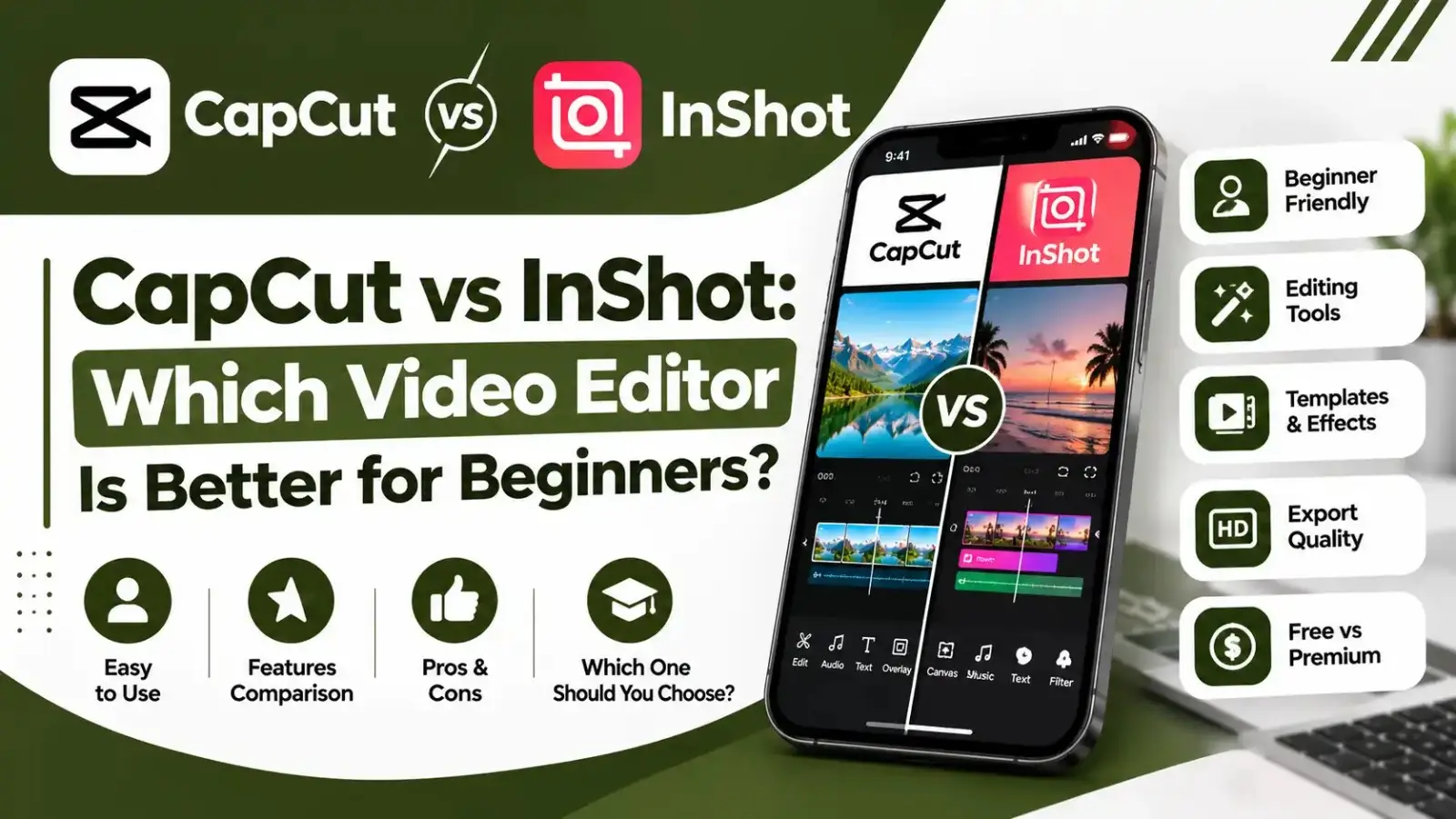
If you are new to video editing, CapCut and InShot are the two apps you will hear about first. Both are free to download, both run on Android and iPhone, and both can turn raw phone clips into social media videos. The short answer: CapCut is better for most beginners because its free plan is more powerful and it includes auto captions and templates. InShot is the better pick if you want the simplest possible app or a very cheap paid upgrade.
Quick Verdict
Choose CapCut if you make Reels, TikToks or Shorts and want captions, templates and keyframes for free. Choose InShot if you only need quick trims, music, text and photo slideshows, and you prefer paying a small one-time fee for a clean, ad-free experience.
Key Takeaways
- CapCut offers more free features, including auto captions, templates and keyframes.
- InShot is simpler and lighter, which helps on older phones.
- InShot Pro is much cheaper than CapCut paid plans and even has a lifetime option.
- Both apps can add a watermark on the free version unless you follow their rules or upgrade.
- CapCut works on desktop and web too, while InShot is mainly a mobile app.
CapCut vs InShot: Quick Comparison
| Feature | CapCut | InShot |
|---|---|---|
| Developer | ByteDance | InShot Inc. |
| Platforms | Android, iOS, Windows, macOS, web | Android, iOS |
| Free plan | Very generous | Basic, with ads |
| Auto captions | Yes | Limited compared with CapCut |
| Templates | Huge trending library | Small selection |
| Keyframes | Yes | Yes |
| Paid plan | Standard and Pro subscriptions | Monthly, yearly or lifetime Pro |
| Best for | Social creators who post often | Quick, simple edits |
Ease of Use
InShot wins on simplicity. When you open it, you see three clear options for video, photo and collage, and the editing tools sit in a single row. There is very little to learn, which makes it great for parents, shop owners and anyone who edits a video once in a while.
CapCut has more buttons and menus, but it is still beginner friendly. Most new users start with templates, which is the fastest way to get a polished result. Once you understand the timeline, CapCut gives you far more room to grow.
Editing Features
What CapCut does better
- Auto captions that turn speech into styled subtitles in seconds.
- Trending templates that match current TikTok and Reels styles.
- Speed curves for smooth velocity edits.
- AI tools such as background removal and long video to shorts.
- Desktop and web versions for bigger projects.
What InShot does better
- Lightweight performance on budget phones.
- Photo editing and collages in the same app.
- Canvas and background tools that quickly fit any video to square or vertical formats.
- Cheap lifetime upgrade instead of a monthly bill.
Watermarks on the Free Version
InShot adds a small watermark to free exports. You can remove it for a single video by watching an ad, or remove it permanently with InShot Pro. Ads also appear inside the free app, and this is the most common complaint from users.
CapCut lets you export basic edits without a watermark. The watermark or a paywall appears when you use Pro templates, premium effects or certain AI tools without a subscription.
Pricing Compared
| Plan | CapCut | InShot |
|---|---|---|
| Free | Yes | Yes, with ads and watermark |
| Monthly | Standard around $9.99, Pro around $19.99 | Pro around $3.99 |
| Yearly | Pro around $179.99 | Pro around $14.99 |
| Lifetime | Not offered | Around $34.99 |
On price alone, InShot is the clear winner. A full year of InShot Pro costs less than a single month of CapCut Pro. The trade-off is that CapCut offers far more features, especially for captions and AI.
Performance on Budget Phones
On phones with 3 GB of RAM or less, InShot usually feels smoother because it does less in the background. CapCut can slow down with long timelines, many layers or heavy effects. If your phone is older, keep CapCut projects short, export at 1080p and close other apps before editing.
Which One Should You Choose?
| If you want to | Pick |
|---|---|
| Make TikToks, Reels and Shorts with captions | CapCut |
| Use trending templates | CapCut |
| Edit on a laptop as well as a phone | CapCut |
| Make quick edits on an older phone | InShot |
| Create photo slideshows and collages | InShot |
| Pay once and never see a bill again | InShot |
Many creators use both. They edit their main videos in CapCut and keep InShot for quick resizing, collages and photo posts. Since both apps are free to try, the best test is to edit the same short clip in each and see which one feels natural to you.
Final Verdict
For most beginners in 2026, CapCut is the better all-round video editor. It gives you more for free and will keep up as your skills grow. InShot remains a great choice for simple edits, older phones and anyone who wants a low-cost, one-time upgrade.
Frequently Asked Questions
Is CapCut better than InShot?
For most users, yes. CapCut has more free features, including auto captions, templates and AI tools. InShot is simpler and its paid plan is much cheaper.
Which app is easier for beginners, CapCut or InShot?
InShot is slightly easier because it has fewer tools. CapCut is still beginner friendly, especially if you start with templates.
Does InShot have a watermark?
Yes. The free version adds a small watermark, which you can remove for one video by watching an ad or permanently by buying InShot Pro.
Which app is better for low-end phones?
InShot generally runs smoother on phones with limited RAM. CapCut can lag with long or layered projects on budget devices.
Can I use CapCut and InShot together?
Yes. Many creators edit main videos in CapCut and use InShot for quick resizing, collages and photo posts.